How to Whitelist Atarim When Your Site Uses Firewalls, WAF Rules, or IP Restrictions
Ensure Atarim loads and works correctly—even on websites protected by firewalls or maintenance mode.
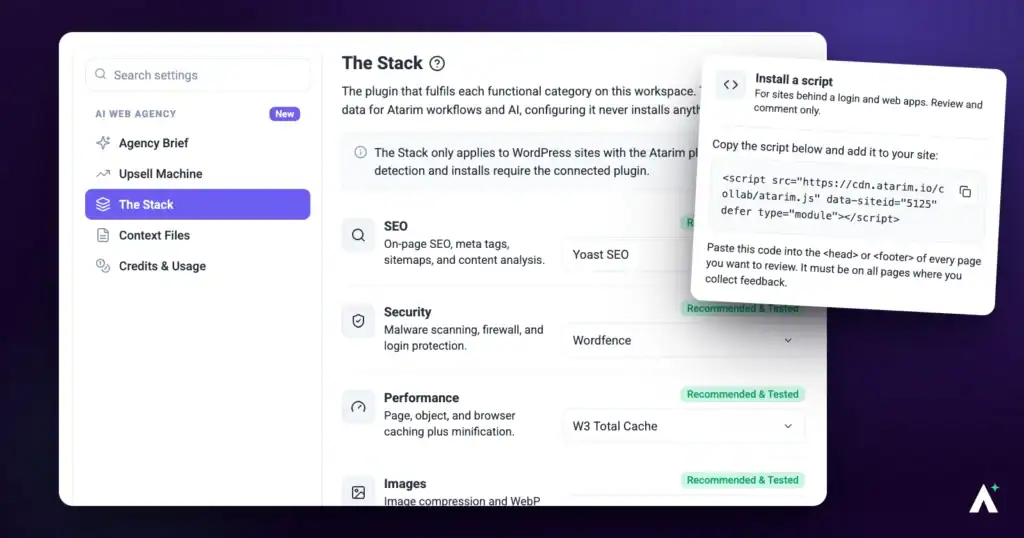
If your website uses security measures such as Cloudflare, Wordfence, Sucuri, IP whitelists, or maintenance mode, you may notice that Atarim cannot load the page or generate screenshots for collaboration. This is because these tools often block automated or external access — including Atarim’s remote workers and screenshot engine.
This guide walks you through the officially supported methods to ensure Atarim can connect to your website: domain-level whitelisting, header-based exceptions, and the Atarim browser extension.
Atarim has no fixed IPs — whitelist by domain, not by address.
Why Your Site May Block Atarim
Common causes include:
- Maintenance mode plugins blocking all external visitors
- Cloudflare WAF rules (especially “Block non-US traffic”)
- Wordfence, Sucuri, or server-level firewalls
- Login walls or staging-site restrictions
- Internal networks with IP-based access
- Malwarebytes/Threatdown false positives
- Cloudflare challenge pages replacing screenshots
How Atarim Connects to Your Site
There are three routes, in the order worth trying them.
| Route | When to use it |
|---|---|
| Whitelist by domain | The recommended first step. Solves most issues. |
| Whitelist by request headers | When domain whitelisting is not enough and your firewall supports header rules. |
| Atarim Browser Extension | Login walls, internal IP restrictions, maintenance mode — the universal fallback. |
Option 1 — Whitelist Atarim by Domain (Recommended)
To load your website and generate screenshots, Atarim uses the domains below. Add each of them to your firewall or WAF allowlist:
| Domain | What it is for |
|---|---|
| atarim.io | The Atarim platform itself. |
| atarimworker.io | Worker requests that load your site. |
| atarimworker.dev | Worker requests that load your site. |
| urlbox.com | The screenshot tool. |
*.atarimworker.io and *.atarimworker.dev.
This solves most issues, including:
- Cloudflare blocking the collaboration link
- Screenshot failures
- Security plugins blocking worker requests
- Country-based blocking (e.g., “Allow US only”)
Option 2 — Whitelist Atarim by Request Headers
If domain whitelisting doesn’t work and your firewall supports header rules, Atarim includes two permanent identifiers:
| Identifier | Value |
|---|---|
| User-Agent contains | atarim-worker |
| Custom header | Proxied-For: Atarim |
Create rules that:
- Allow requests where User-Agent contains
atarim-worker - Allow requests where header
Proxied-For=Atarim
Supported by:
- Cloudflare (WAF Custom Rules / Transform Rules)
- Sucuri
- Some hosting-level firewalls
- Enterprise security appliances
Cloudflare Configuration
Cloudflare is the most common source of blocking. Typical issues include:
- JS Challenge page instead of the site
- WAF blocking worker requests
- Non-US IP blocking rules
- Screenshot shows Cloudflare test instead of the website
Step 1: Create Bypass Rules
Go to Security → WAF → Custom Rules → Create Rule, and allow:
- atarimworker.io
- atarimworker.dev
- atarim.io
- urlbox.com
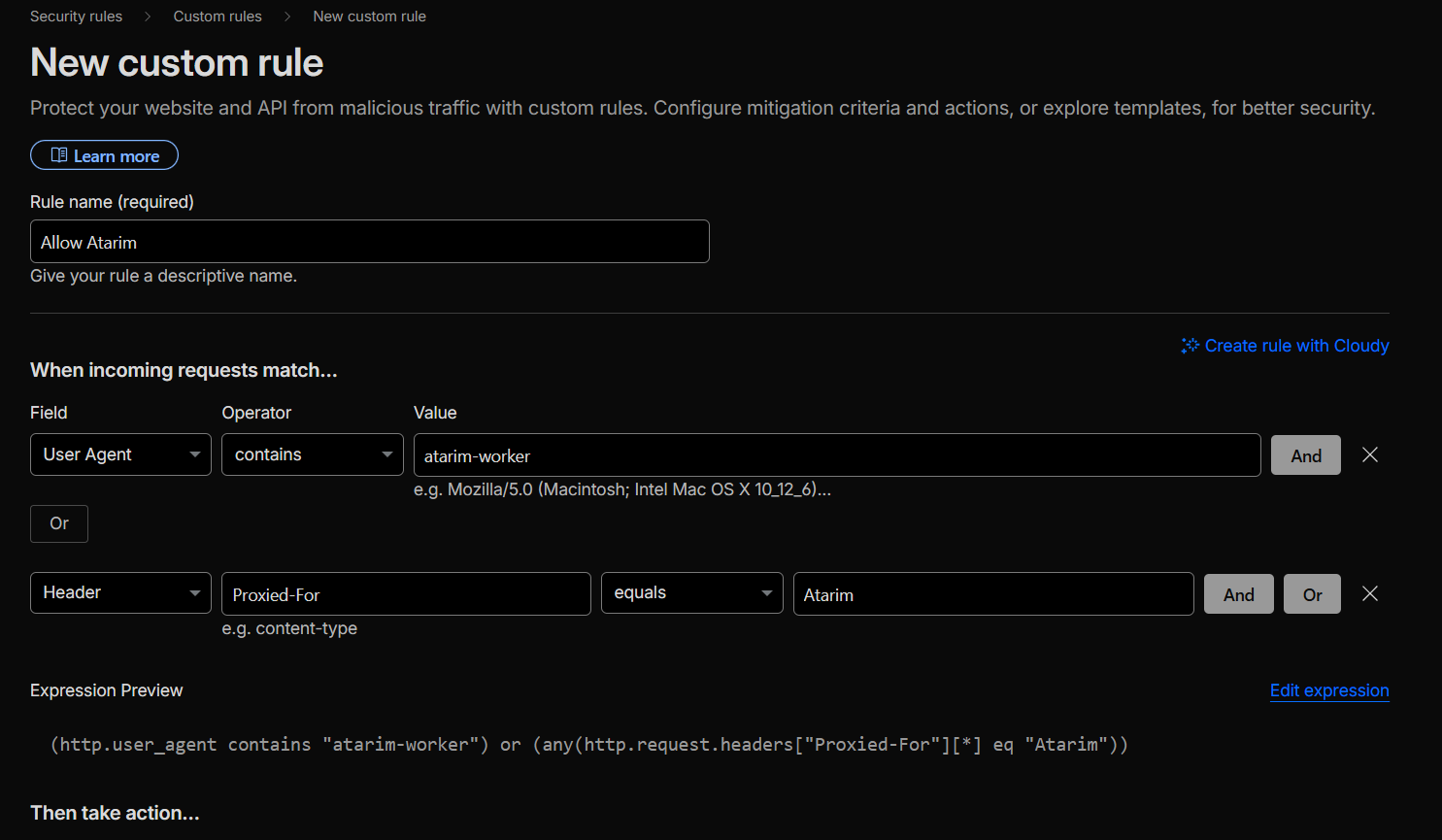
Step 2: Add Header-Based Exceptions
If domain exceptions alone don’t work:
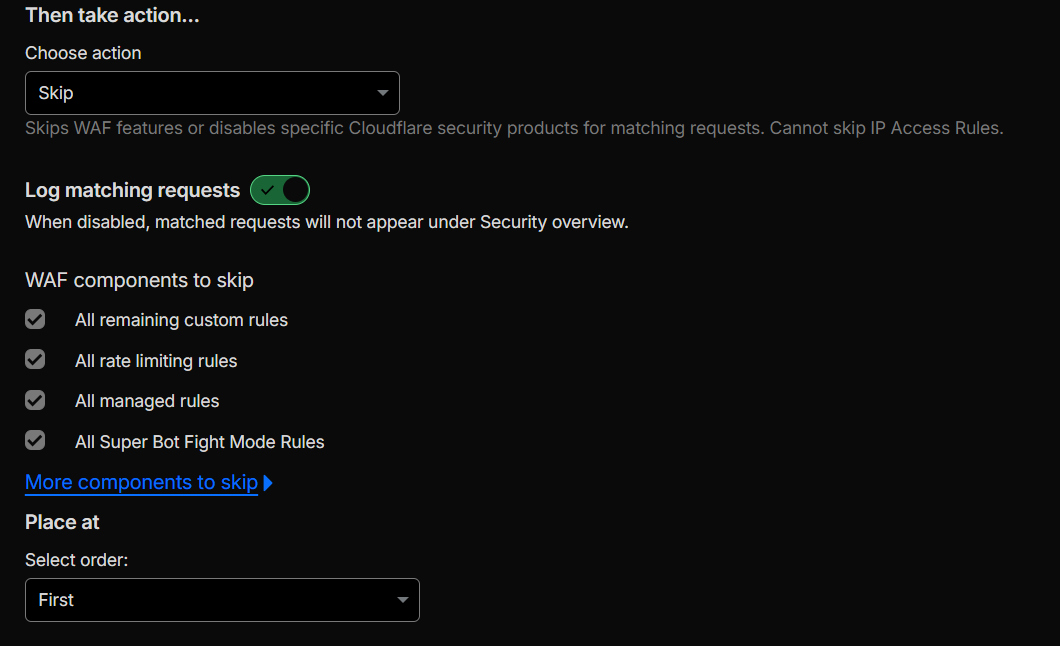
IF: Proxied-For = Atarim
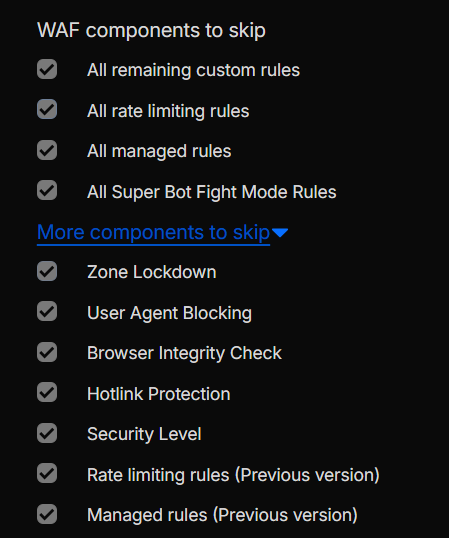
THEN: Skip WAF / skip challenge
OR
IF: User-Agent contains atarim-worker
THEN: Allow request
Step 3: Fix Screenshot Issues
If screenshots show a Cloudflare JS challenge, whitelist urlbox.com.
urlbox.com. It solves most screenshot-related errors immediately.
Option 3 — Use the Atarim Browser Extension
Use the extension when:
- The site is behind a login wall
- Internal IP restrictions are active
- Maintenance mode blocks all external visitors
- Cloudflare continues to challenge requests
- Screenshot engine (URLBox) is blocked
The extension loads the website directly from your browser and bypasses all external restrictions safely. Learn More About Installing The Atarim Chrome Extension
Malwarebytes / ThreatDown False Positives
Some users reported Malwarebytes/ThreatDown flagging ancillary-proxy.atarimworker.dev — detected as Phishing.Web.
What You Should Do
- Add the domain to your allowlist
- This is safe and expected
- Atarim can submit a false positive report
- Only the customer can submit an official correction to Threatdown
- Threatdown may take weeks to update their blocklist
What Atarim Cannot Support
Atarim cannot:
- Provide static IP addresses
- Guarantee bypassing login walls without the extension
- Debug or replicate complex Cloudflare or WAF setups internally
- Guarantee timeline-based fixes for external security configurations
- Override maintenance mode plugins that only allow IP-based access
Common issues
1. Site loads maintenance or login page
✔ Use the Browser Extension
✔ Or disable maintenance mode temporarily
2. Cloudflare test page in screenshots
✔ Whitelist urlbox.com
✔ Add header bypass rules
3. Cloudflare blocking non-US IP traffic
✔ Add domain exceptions for Atarim domains
✔ Add header exceptions if needed
4. Wordfence/Sucuri blocking Atarim
✔ Whitelist all Atarim domains
✔ Allow the user-agent atarim-worker
5. Threatdown blocks Atarim
✔ Safe to whitelist
✔ Customer must file a false-positive report
Conclusion
To ensure Atarim can access and collaborate on protected websites:
- Start with domain whitelisting
- Add header-based firewall exceptions
- Use the Atarim Browser Extension if all else fails
With one of these three supported options, your team can reliably collaborate on any website — even behind enterprise-grade security.