Atarim for UX/UI Designers: Managing Design Reviews and Iterations
Get feedback attached to the pixel it refers to, iterate in versions that keep their history, and hand work back without a status meeting.
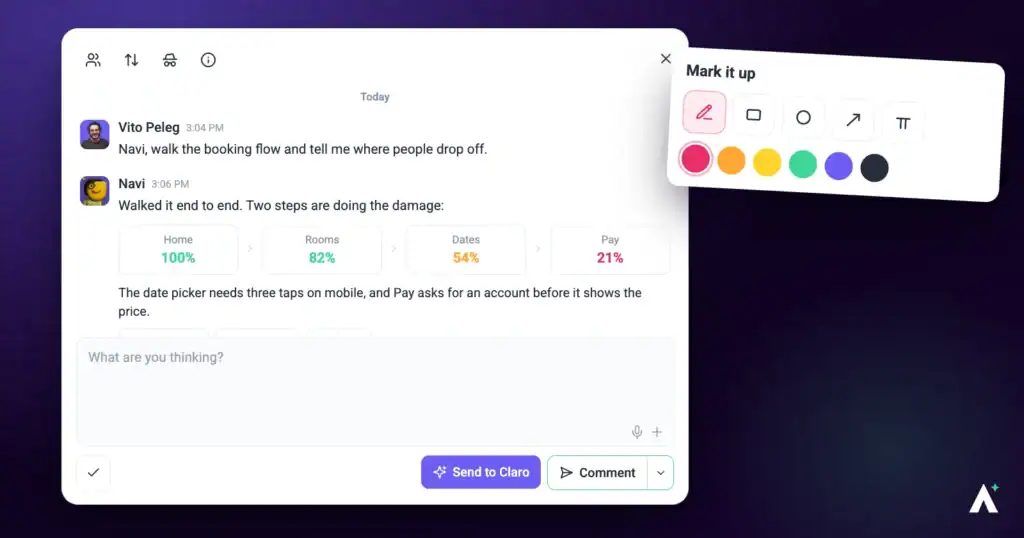
The work of iterating is not the redesign. It is reconciling six comments from four people across three channels, working out which ones contradict each other, and establishing whether the note about the header applied to this round or the last one. Atarim removes most of that by attaching feedback to the design and the version it was given on.
Feedback lands on the design itself, on the version it was left on.
The work of iterating is not the redesign. It is reconciling six comments from four people across three channels, working out which ones contradict each other, and establishing whether the note about the header applied to this round or the last one.
Atarim removes most of that by attaching feedback to the design and the version it was given on. This guide is about being the person receiving and acting on that feedback, rather than the person running the review.
Getting Your Work In
Uploads are capped at 20 MB and 20 files per batch, so a large set needs splitting before you start.
Instructions:
Uploading several related files at once groups them into a collection, which suits a set of screens better than adding them one by one.
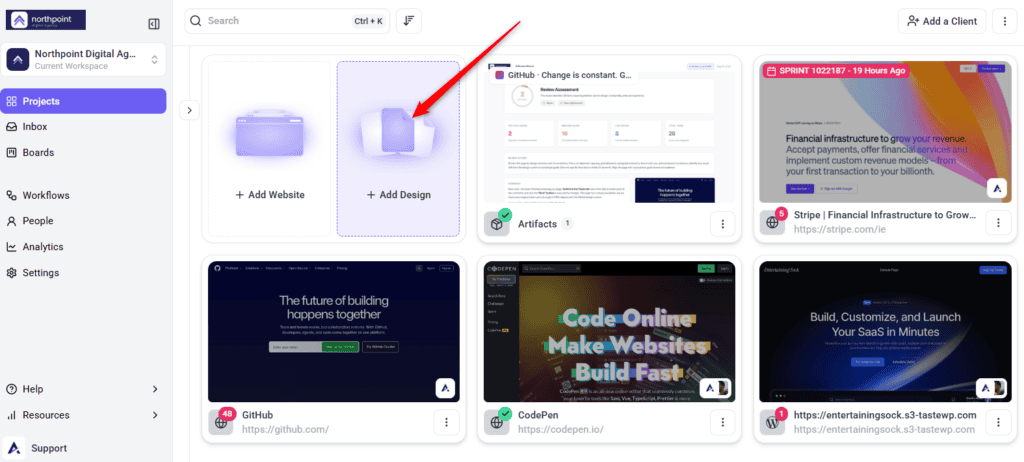
Iterating in Versions
Versions are what stop round three inheriting round two’s comments. Feedback stays attached to the version it was left on, which means your revision history doubles as a record of why each change happened.
Instructions:
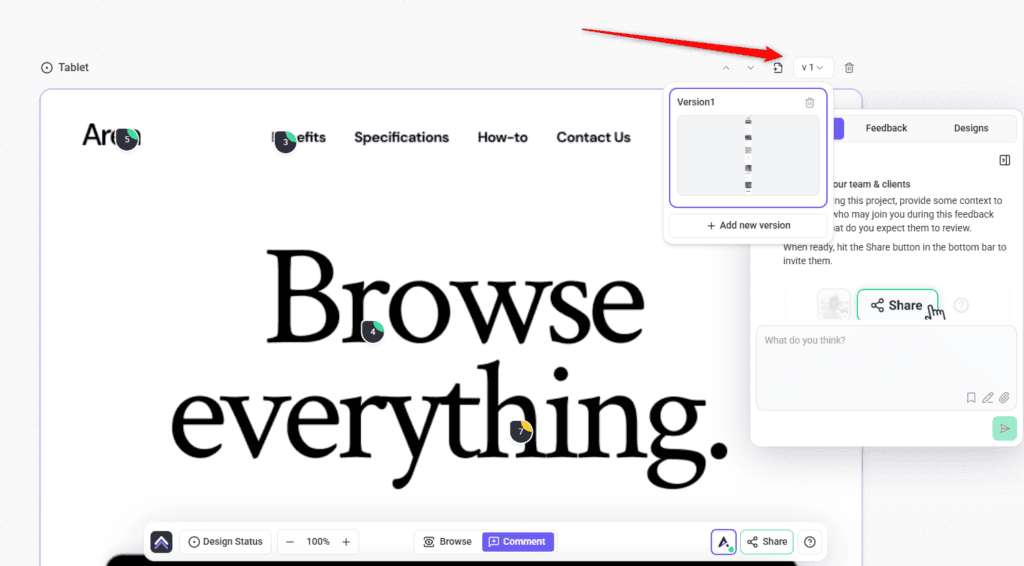
Two constraints are worth knowing. The last remaining version cannot be deleted, and version actions are permission-gated — without the right permission you see You do not have permission to create new versions rather than a silent failure.
What You Can Do from the Info Bar
| Control | What it does |
|---|---|
| Rename | Retitles the design. Save title confirms. |
| Status | Shows where the design sits in the cycle. |
| Create new version | Adds a revision under the same design. |
| Move up / Move down | Reorders the design within the project. |
| Delete design | Removes it entirely. Cannot be undone. |
Designs can also be dragged in the grid to reorder them, which is quicker than moving one position at a time when sequencing screens for a walkthrough.
Signalling Where a Design Is
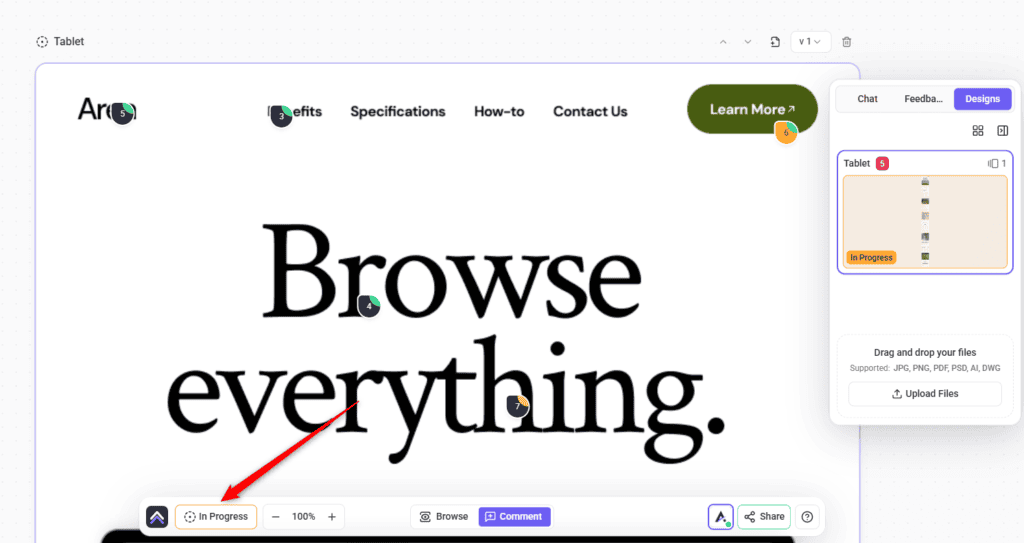
Status is set from the Design Status control in the bottom bar, with the tooltip “change status for the current design in view”. It applies to whichever design you are looking at.
| Status | What it signals |
|---|---|
| No Status | Nothing claimed yet. |
| In Progress | You are actively working on it. |
| Needs Review | Ready for eyes. This is how you ask for feedback. |
| Approved | Signed off. Changes after this are a new round. |
Reading the Feedback You Get
Reviewers click the part of the design they mean and type. Each comment becomes a task pinned to that point, on that version. When a design has no feedback yet, the sidebar prompts reviewers to click any part of the design to leave their feedback.
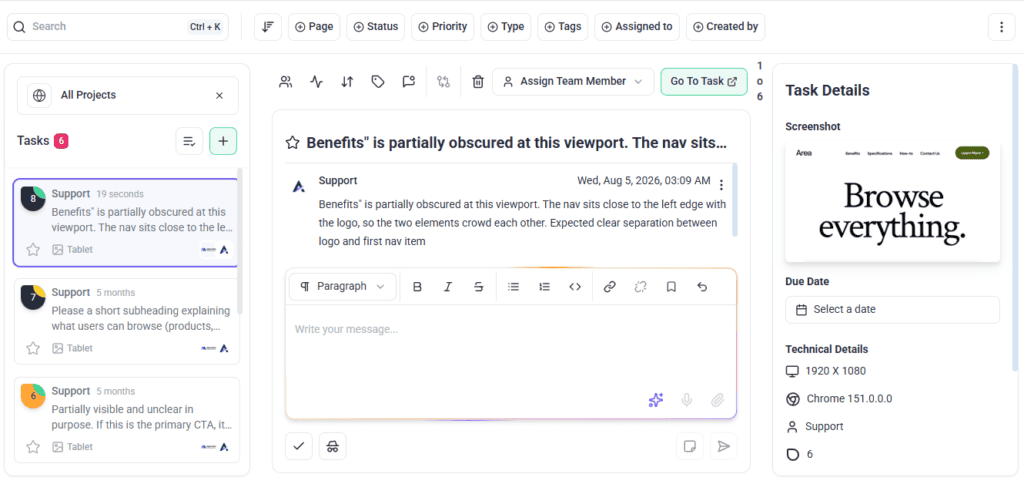
| What arrives with a comment | Why it saves you a round |
|---|---|
| The point on the canvas | No ambiguity about which element is meant. |
| The version it was left on | You know whether it applies to what you have now. |
| Who left it | You know whose opinion it is, which matters when two conflict. |
| The thread | Replies stay with the point instead of scattering. |
Responding and Handing Work Back
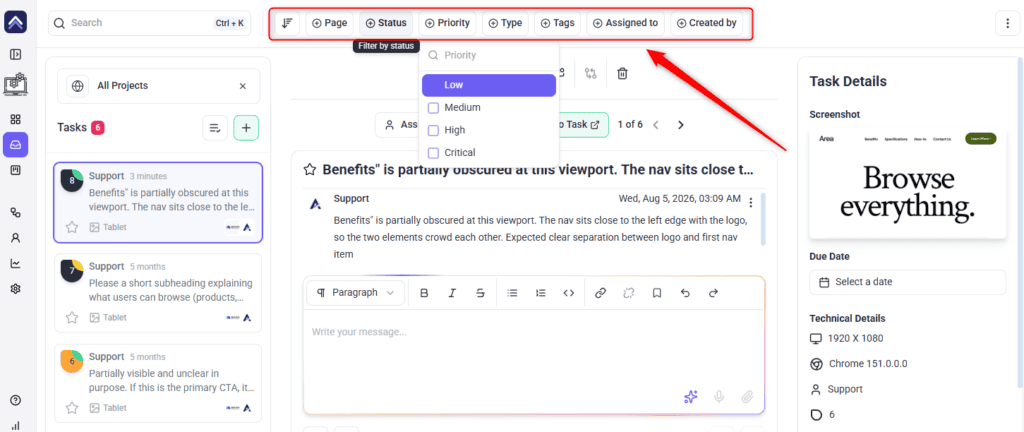
Each piece of feedback is a task with a status and a priority. Statuses run Open, In Progress, Pending Review, and Complete; priorities run Low, Medium, High, and Critical.
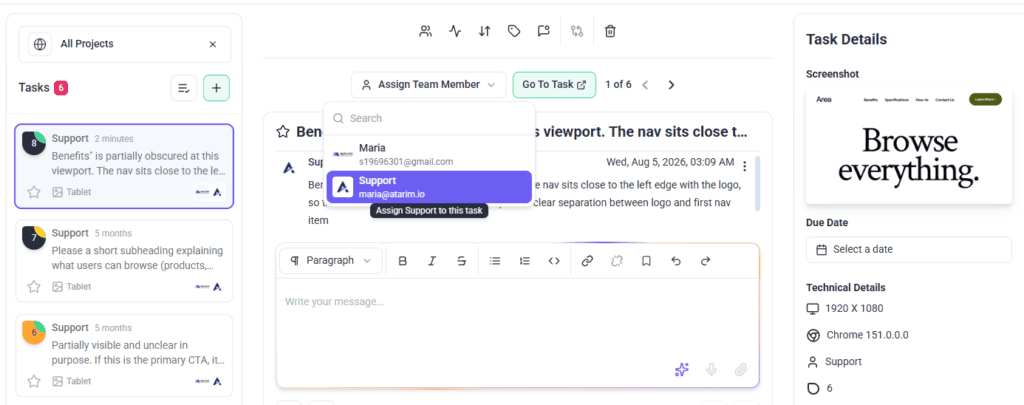
You can annotate your reply as well as your reviewers can annotate theirs. The comment box carries an annotation control that opens a window headed Annotate screenshot, with arrow, rectangle, circle, pen, and text tools, plus Undo, Redo, and Fit to Screen.
Working Through a Round
By round three the list is long. The designs sidebar carries filters built for this.
Talking to Your Team, Not the Client
Comments and tasks can be marked internal, which hides them from guests and clients. This is where you raise that a request breaks the grid, or that something will cost more than it is worth — on the design, without it landing in the client’s review.
Getting an AI Opinion Before the Review
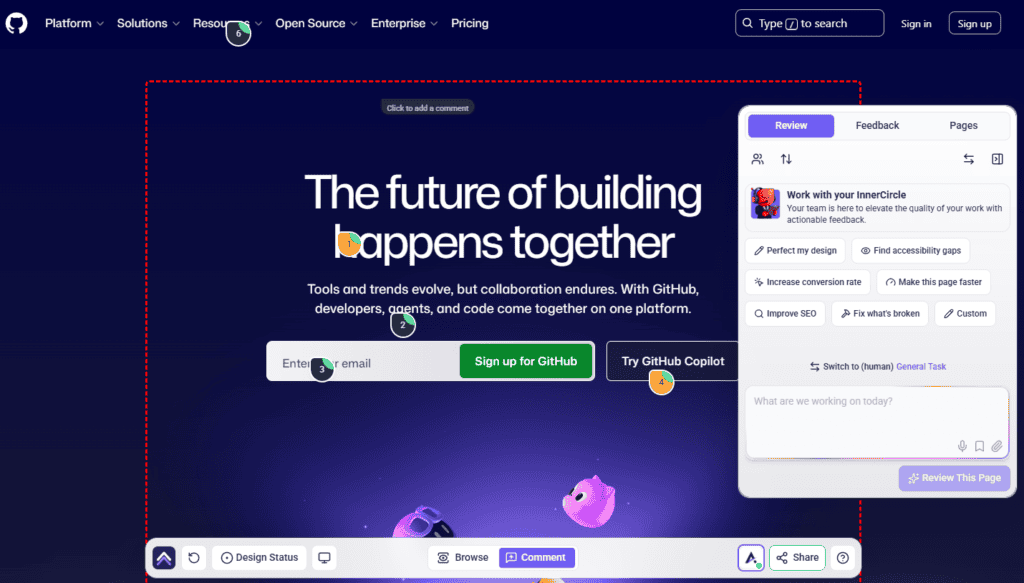
Atarim’s AI team can review a built page before your human reviewers see it. Two members matter most to a designer.
| Agent | Domain |
|---|---|
| Navi | UX and accessibility — WCAG alignment at AA baseline, colour contrast, touch target sizing, form labelling, error message usability, readability and cognitive load. |
| Pixel | Visual design — layout, spacing, and visual execution. |
| Lexi | UX writing and content. |
| Index | SEO and metadata. |
| Glitch | Technical QA and UX health. |
Reviews are started from a page in the collaboration view. At least one agent must be enabled, and only one review runs at a time. Findings come back in the Review tab in the sidebar, grouped by the viewport they were found in; selecting one takes you to it on the page.
Benefits for a Designer
| Benefit | In practice |
|---|---|
| Feedback lands on the pixel | No more decoding “the thing near the top”. |
| Versions carry their own history | Round three does not inherit round two’s comments. |
| Conflicts surface early | Reviewers see each other’s comments during the round. |
| Status instead of status meetings | Needs Review says what a message in a thread would. |
| Room to push back privately | Internal notes let you argue a constraint without the client reading it. |
| Accessibility caught early | Navi flags contrast and target sizing before a reviewer does. |
Fewer rounds is the compounding benefit. See Reducing Feedback Cycles With Visual Collaboration
Example Use Cases
| Situation | What to do |
|---|---|
| A revised screen after feedback | Add a version, not a new design, so the history stays intact. |
| Two reviewers want opposite things | Reply on both comments and name the conflict rather than choosing. |
| A request that breaks accessibility | Push back in a comment, with Navi’s finding as the evidence. |
| Ready for the client to look | Set the design to Needs Review rather than messaging someone. |
| A change you think is a mistake | Raise it internally first, then take one position to the client. |
| Catching up after a day off | Sort by Unread to see only what moved. |
Known Limitations
FAQs
Should a revision be a new version or a new design?
A new version, almost always. It keeps the feedback history attached to the work it belongs to.
Does old feedback carry over to a new version?
Comments stay attached to the version they were left on, which is what lets you see what each round actually changed.
How do I tell a client a design is ready?
Set the design to Needs Review. It is visible to everyone and outlasts a message.
Why can I not set a design to Draft?
Draft can be displayed but is not one of the options in the status control. The choices are No Status, In Progress, Needs Review, and Approved.
Can I annotate my replies?
Yes, using the annotation control on the comment box, with the same tools reviewers have.
Can I disagree with feedback without the client seeing?
Yes, using internal notes, where enabled on your plan.
Can the AI review my mockup?
Reviews are started from a page, so the design needs to be built first.
Which agent checks accessibility?
Navi, covering WCAG AA alignment, contrast, touch targets, form labelling, and readability.
Should I close feedback myself?
Set client-raised work to Pending Review and let them confirm. Closing it yourself causes it to reappear.
Can I reorder designs in a project?
Yes — drag them in the grid, or use move up and move down in the info bar.
Common issues
- “You do not have permission to create new versions” — your role on this project does not carry version rights. Ask an administrator.
- The version delete option is unavailable — it is the last remaining version. Delete the design instead if that is what you want.
- A Figma import brought in the whole page — no frame was selected when the URL was copied. Select it and import again.
- Upload failed — check the batch against the 20 MB and 20 file limits and that the file type is supported.
- You cannot see the Design Status control — page approvals are not on your plan, or your role does not carry the status permissions.
- A brand new design already shows as In Progress — no status has been set. The badge falls back to In Progress.
- Feedback landed on an old version — the reviewer was viewing it. Check the version selector before the next round opens.
- Reviewers cannot open the design — it has not been shared with them yet.
- Internal tasks are locked — not on your plan. Do not assume a comment is hidden from the client.
- The designs view is cramped — the browser is narrower than recommended. Widen the window.
Conclusion
Add versions rather than new designs, set Needs Review instead of messaging someone, name conflicts instead of quietly picking a side, and let the client close their own requests. The context arrives free — the discipline is in how you respond to it.
Understanding how the review is being run makes it easier to work with. Explore Atarim For Design Leads
Tips & best practices
- Add versions, never re-upload a revision as a new design.
- Select the Figma frame before copying the URL.
- Name designs after the screen, not the file.
- Set Needs Review rather than telling someone it is ready.
- Name contradictions between reviewers instead of choosing silently.
- Annotate when explaining a constraint — one image beats three messages.
- Run Navi before a client sees the built page.
- Let clients close their own requests.